
-

·
Print Labels from Unfulfilled Orders
If you’re looking to print labels for products based on an unfulfilled order, use the Print Labels from Order tool. As long as you have a label template set up, you should be able to browse through your store’s unfulfilled orders and simply download a print file based on the items and quantities of line…
-
·
Print Warehouse Receiving Order Labels
Why Print Receiving Labels? When you receive goods into your warehouse, generating and printing receiving-order labels helps you: Printing Labels for Warehouse Receiving Orders When you create a warehouse receiving order to mark a purchase order as being fulfilled, or partially fulfilled, you’re declaring that you’ve received inventory. If you have both the Barcode Inventory…
-
·
ScanWay – Changelog
ScanWay is updated to match changing requirements from Shopify’s app APIs, to fix outstanding bugs and to better match our customers’ needs. January 15, 2026 December 15, 2025 November 1, 2025 June 17, 2025 March 29, 2025 March 24, 2025 December 3, 2024 November 22, 2024
-
·
Getting Started
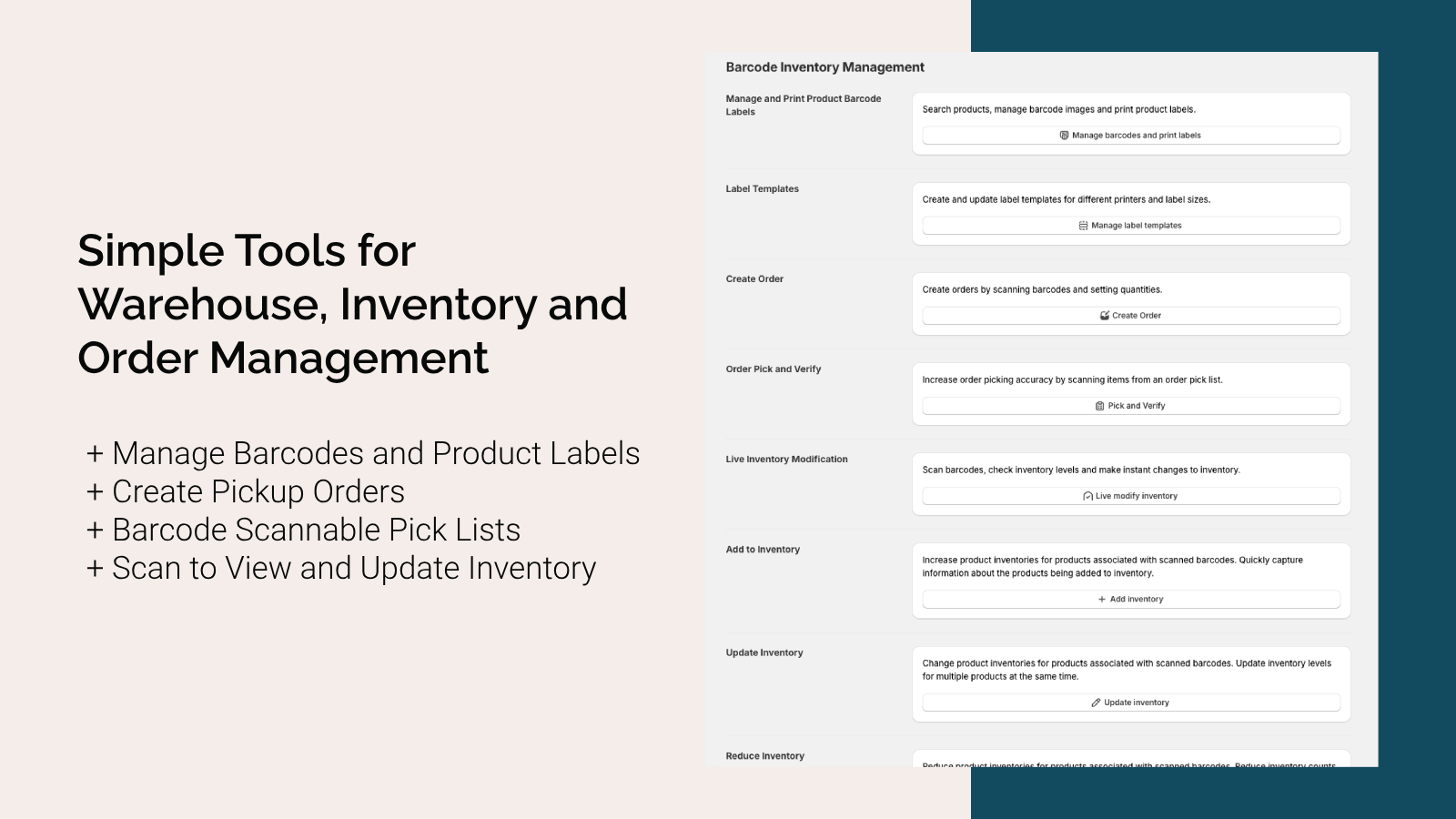
The ScanWay app for Shopify Stores is made up of several related tools. Understanding how each tool functions and what is necessary for each tool to work should help you determine how the app can help you manage your store’s inventory. All of the tools can scan Code 128, UPC, EAN, or ISBN barcodes, to…
-
·
Page Definitions
Page Width This is the measurement of the page’s width. The most common widths for pages are 8.5 inches (US letter size) or 210mm (A4 size). Page Length This is the measurement of the page’s length. The most common widths for pages are 11 inches (for US letter size) or 297mm (A4 size). X Margin…
-
·
Manage Barcode Label Templates
What are Label Templates? Barcode label templates in ScanWay let you design how your product labels will look — including what product data appears (SKU, name, price), which barcode format to use, and how the layout is structured. These templates are essential for: When working with ScanWay’s barcode label management tools, we can split up…
-
·
View Batch Changes
For any of the batch change tools (add, reduce or update), you’ll be able to see the results of your changes on the Batch Update Results page. To get to this page, click on the View history button from the main page of the ScanWay app. For each change made, you’ll see a couple of…
-
·
Add Inventory in Bulk Using ScanWay for Shopify
Why Use the Add-Inventory Batch Change Tool? The Add Inventory feature in ScanWay is designed to make it easy to increase stock levels across multiple items at once, using barcode scanning. Key benefits include: Scanning Barcodes To begin scanning, select a location that we’re looking to add inventory for, and then click in the Scan…
-
·
Update Inventory in Bulk Using ScanWay for Shopify
Why Use the Update-Inventory Batch Tool? ScanWay’s Update Inventory feature lets you adjust stock levels for many items at once using barcode scanning. It’s more efficient and accurate than manual edits. Key benefits include: Scanning Barcodes The “Update Inventory” tool is a batch modification tool that changes the inventory count of scanned items. To change…
-
·
Bulk Reduce Inventory with ScanWay for Shopify
Why Use the “Remove Inventory” Batch Tool? ScanWay’s Remove Inventory feature lets you decrease stock counts for many items at once using barcode scanning. Instead of manually adjusting each SKU, you can scan, reduce, and document changes in a single, efficient workflow. Key benefits include: Scanning Barcodes The “Remove Inventory” tool is a batch modification…
Category: Inventory Management
Posts about inventory management