
The packing rule form defines one checklist item for packers: what type of
check it is, what it applies to, and what the packer sees. The same form is
used for new rules and editing — editing opens it with everything pre-filled.
Open it from App Settings → Packing Rules → New Packing Rule, or click
Edit on a rule.
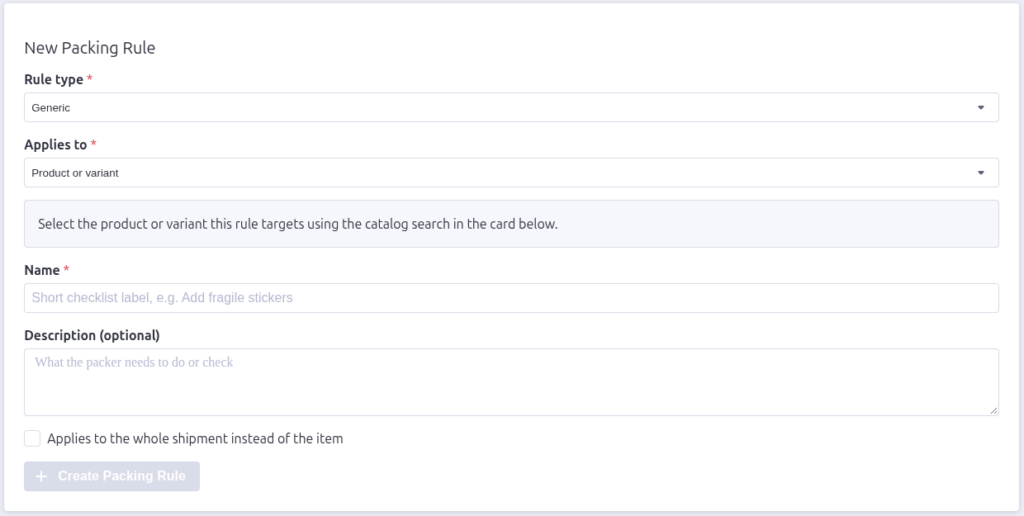
Rule type (required)
What kind of check it is:
- Generic — a plain checkbox reminder.
- Send customer email — reminds the packer to contact the customer.
- Take picture — requires a photo; the packer photographs the item or
shipment in the warehouse app. - Add print item — a PDF the packer prints and includes in the box (you
upload the PDF after the rule is created, on the edit screen). - Print shipping label — reminds the packer to print and attach the label.
- Critical shipping requirement — a must-not-miss check; always applies
to the whole shipment.
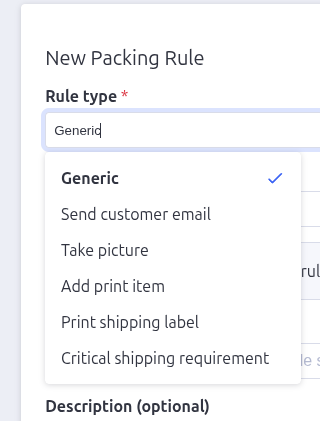
Applies to (required)
What the rule targets:
- Product or variant — pick a target using the Catalog Search card
that appears below the form. - Category — pick from a dropdown of your store’s categories (nested
categories show as paths like “Apparel › Shirts”). - Order shipment — applies to every shipment; no target needed.
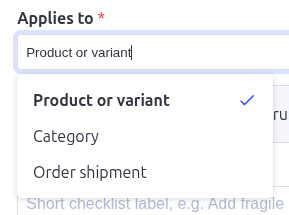
Using Catalog Search
When “Product or variant” is selected, a Catalog Search card appears
below the main form. Type a product name or SKU — results appear as you type,
with each product and its variants listed.
- Select product — targets the whole product (every variant).
- Select variant — targets just that variant (the rule level is set
automatically from which you pick).
The selected target shows a “Selected” badge, and you can clear it to pick
again.
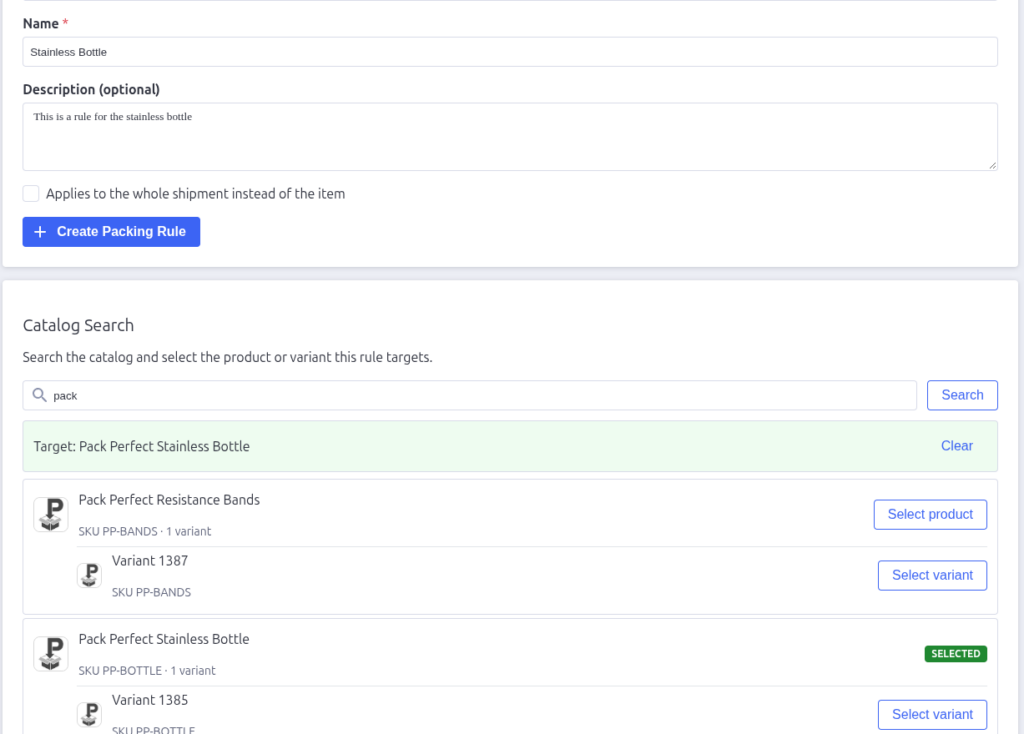
Name and description
- Name — the short checklist label, e.g. “Add fragile stickers”.
- Description — what the packer needs to do or check, e.g. “Wrap the item
in bubble wrap and add a fragile sticker to the box”.

Applies to the whole shipment
The checkbox below Description moves a product/variant/category rule from
the matching item’s checklist to the order checklist — one check per
shipment instead of one per item. It’s disabled (and forced on) for Critical
shipping requirements, which are always shipment-level.
Saving
Click Create Packing Rule (or Save Packing Rule when editing). The
form validates that a name, description and target are all set before the
button works.
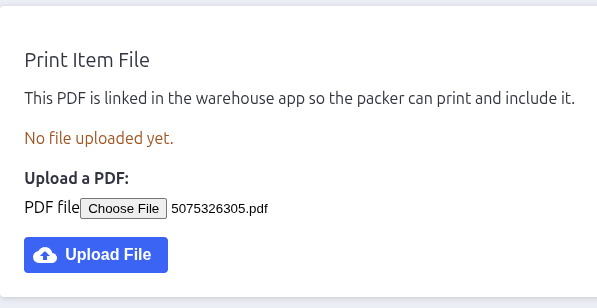
Uploading a print file
For Add print item rules, an extra Print Item File panel appears on
the edit screen once the rule exists. Upload the PDF there — packers then get
a link to print it in the warehouse app. You can download the current file or
replace it any time. PDFs only.

Pack Perfect
Pack Perfect is coming soon! Email support@athousandapps.com to be added to the list and we’ll let you know as soon as it’s released.