
The Completed Batches page manages batches that have finished packing.
When packing ends with picked items still on the cart — items that were
unpickable, or shipments the packer couldn’t complete — those leftovers land
here so you can decide what to do with them.
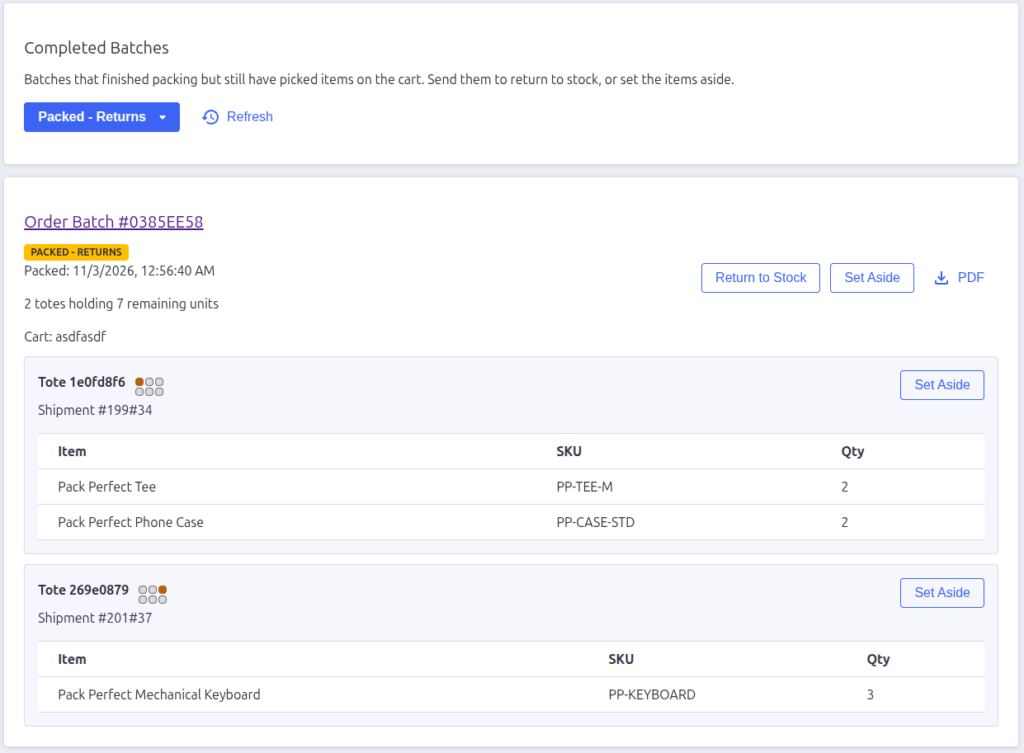
Filtering by status
The dropdown at the top filters which batches you see:
| Filter | What it means |
|---|---|
| Packed – Returns | Packing is done and leftover items need a decision — return them to stock or set them aside |
| To Return | Sent to the warehouse returns queue; waiting for a returner to claim it |
| Returning | A returner is actively working the batch |
| Returning (Parked) | A paused return, waiting to be resumed |
| Complete | Fully finished — returned to stock, set aside, or packed with no leftovers |
Click Refresh to reload the list.
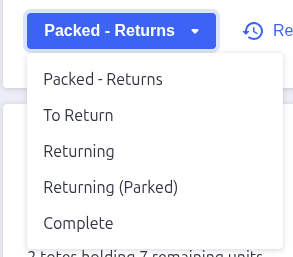
Reading a batch card
Each batch card shows the batch name (click it for the full batch detail
page), a status badge, when it was packed, how many totes are holding
leftover items and how many units, the cart ID, and — depending on state —
the returner’s email, parked progress (“Parked by … – N of M items
returned”), returned/set-aside timestamps, and a history of set-aside events.
Under the card header, a card per tote shows its cart position, its shipment,
and the exact items inside.
Every card also has a PDF button that opens the PDF Download Options
dialog — the same options as Active Batches, so you can download paperwork
for the batch at any stage.
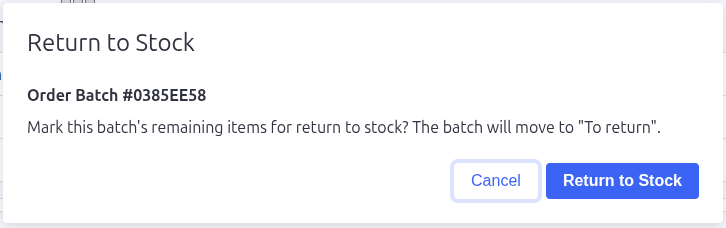
Return to Stock
On a Packed – Returns batch, click Return to Stock and confirm. The
batch moves to To Return and becomes claimable in the warehouse app’s
Returns tab, where a returner scans the items back into stock.
When the return is finished, the batch moves to Complete and the card
shows “Returned to stock” with a timestamp. As a bonus, the returned
shipments are un-converted so they can be prepared and sold again.
Set Aside
Set Aside takes the leftover items out of the return flow entirely — for
example when damaged stock is going somewhere other than your shelves.
Two ways to use it:
- Set Aside on the batch card — sets aside every remaining shipment in
the batch and marks the batch Complete. - Set Aside on an individual tote card — sets aside all of that
shipment’s totes (a shipment is never split). If other shipments still
have leftovers, the batch stays open; each set-aside is recorded in the
batch’s history (“Set aside: Shipment #… by … at …”).
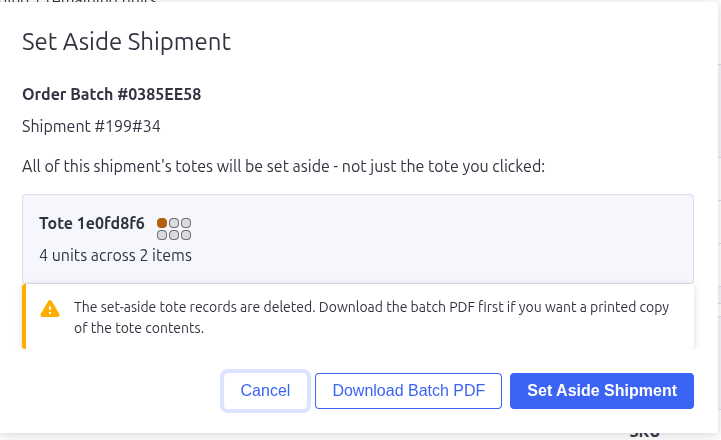
Important: set-aside deletes the leftover tote records. The
confirmation dialog offers a Download Batch PDF button — download it
first if you need a printed record of what was on the cart.

Pack Perfect
Pack Perfect is coming soon! Email support@athousandapps.com to be added to the list and we’ll let you know as soon as it’s released.