

Bulk updating inventory levels is the fastest way to make large, precise stock adjustments across multiple products in your Ecwid store. Whether you are performing cycle counts, correcting discrepancies, or syncing warehouse counts after receiving new stock, this tool lets you scan products and commit all changes at once.
Why Bulk Update Inventory?
The Bulk Update tool is ideal when you want to set specific inventory quantities for multiple products. Instead of incrementing or reducing stock, this feature lets you define the new exact on-hand quantities for each scanned item.
Use it for:
- Cycle counts and annual inventory audits
- Correcting stock inaccuracies
- Updating inventory after warehouse reorganizations
- Setting quantities for products that were miscounted or misplaced
- Applying large batches of changes without editing products one by one in Ecwid
Every quantity you enter replaces the existing inventory number, ensuring your Ecwid store reflects correct, up-to-date stock levels.
Scanning Barcodes
To begin scanning, click in the “Scan Barcode” input area. Any item scanned should result in a scanned item below. The barcodes being scanned to not need to come from the generated barcodes from the barcodes and label management tool included with this app. Barcodes can be any code that is readable by your scanner – the scanned symbol will appear temporarily in the “Scan Barcode” input area after it is scanned.
The scanned values will be matched with your store’s product and variation SKU values, as well as their related UPC values. The UPC field can be set to any code value, including EAN or ISBN values, and they should scan correctly.
Adding Notes

If you have additional information that is relevant to a batch update, you can include these notes in the “Add Notes” field. For updating product inventories, this could be something along the lines of performing a cycle count in a warehouse. You could potentially also add notes about possible mispicks or other losses that might be relevant to this batch for accounting or process improvement.
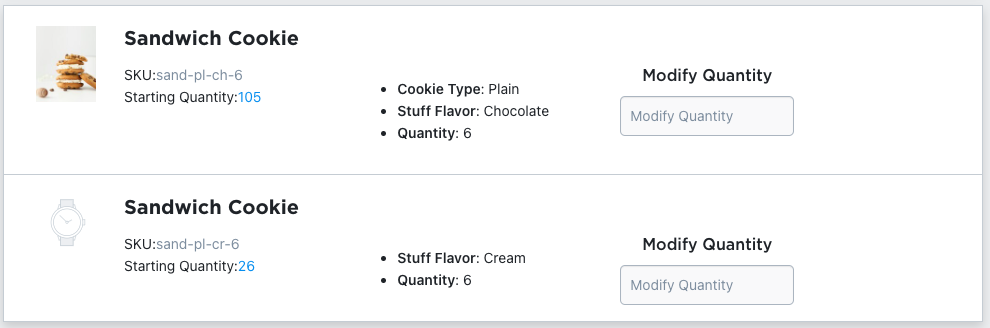
When an item is scanned, they will appear below the notes section. In the row that gets added, you’ll be able to see some information about what was scanned, and you’ll get a field to determine how many additional items need to be added to that item’s inventory. In the information you see, you should see the item’s SKU, the starting quantity (at the time of scanning) and any variation options associated with the SKU.
The “Starting Quantity” field does not update if modifications are made to the item’s inventory while the batch changes form is being filled out. For adding and reducing inventory, the changes are not based on this value. For adding inventory, the addition will be made to whatever inventory exists for the item at the time that the submission is read by Ecwid.
If you have scanned an item and no longer need to modify its inventory, you can leave the field blank and it won’t be included in the batch update.
Other Controls
If you’re ready to make the changes described in this form, you can click on the “Submit Changes”. When this button is clicked, the submission will be made to Ecwid, and the UI will begin following the changes as they’re made:
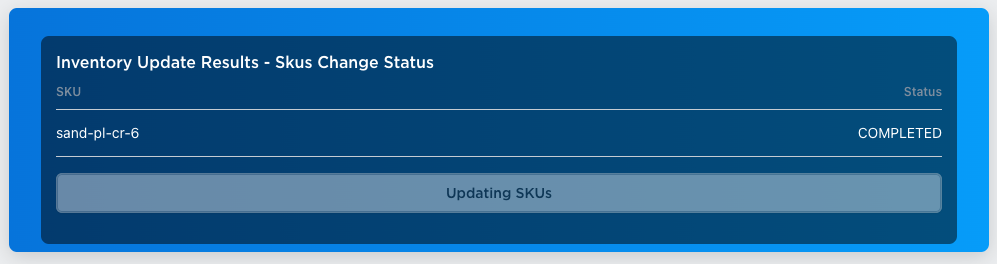
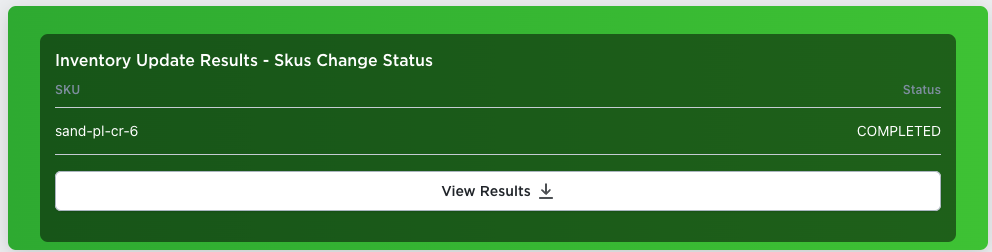
Once the tasks are complete, the UI will be updated, and you’ll see a button with a link to view and download your changes.
If you need to completely clear the form, you can click on the “Clear Session” button and the form will be reset.
Best Practices for Bulk Updating Inventory
- Perform counts systematically: Move through your warehouse in zones or shelves to avoid missing items.
- Use notes consistently: Helps with later reconciliation and inventory auditing.
- Scan every item being counted: Avoid manual entry when possible — it reduces errors.
- Review before updating: Once saved, the new quantities immediately overwrite inventory levels in Ecwid.
- Use Live Modification for small fixes: Bulk updates shine during large adjustments, while Live Inventory is better for quick, one-off corrections.

Barcode Inventory Management for Ecwid by Lightspeed
Barcode Inventory Management can help you manage your store’s inventory. Try now, and get a 7 day free trial!
Hopefully this article has inspired you to make improvements to your inventory management systems. If you’re interested in reading more, check out our blog here, or try out the apps today. The Shopify, Ecwid by Lightspeed and BigCommerce versions of the app come with a 1 week free trial, so you can test them out, hassle free!
If you have any questions about A Thousand App’s apps, please reach out to us at support@athousandapps.com and we’ll happily address any concerns you have!