
The Packing Rules page manages the checklists packers see in the
warehouse app when packing a shipment. Each rule is one checklist item —
“check the item for damage”, “include the packing slip”, “take a photo” —
applied to a product, a variant, a category, or every shipment.
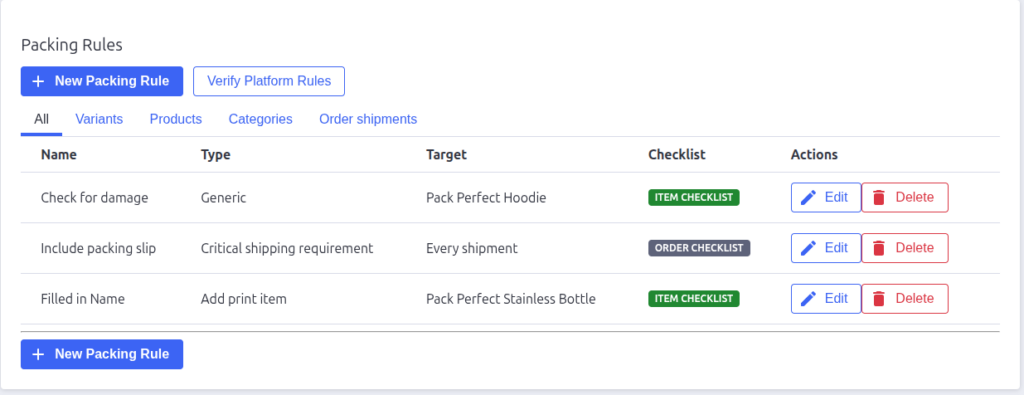
The rules list
Tabs filter the table by where rules apply: All, Variants,
Products, Categories, and Order shipments.
| Column | What it shows |
|---|---|
| Name | The short label packers see |
| Type | The rule type (see below) |
| Target | What it applies to — a product/variant name, a category path, or “Every shipment” |
| Checklist | Item checklist — shown under the matching item; Order checklist — shown once for the whole shipment |
| Actions | Edit opens the rule form; Delete asks for confirmation then removes the rule |

Rule types
| Type | What the packer sees |
|---|---|
| Generic | A plain checkbox reminder — “check for damage”, “add a flyer”, etc. |
| Send customer email | A reminder to contact the customer about the shipment |
| Take picture | A photo requirement — the packer photographs the item or shipment in the app; the upload satisfies the rule |
| Add print item | A PDF to print and include (upload the PDF on the rule’s edit screen) — e.g. a warranty card or return form |
| Print shipping label | A reminder to print and attach the shipping label |
| Critical shipping requirement | A must-not-miss check — always applies to the whole shipment |
Where rules appear
- Product, variant, and category rules normally appear on the matching
item’s checklist when a shipment contains that item. - Ticking “Applies to the whole shipment” on a rule moves it to the
order checklist instead — one check for the shipment rather than one per
item. - Order shipment rules always appear on the order checklist, for every
shipment. - Critical shipping requirements always live on the order checklist —
they’re too important to bury under one item.
Managing rules
Click New Packing Rule to create one — see Creating and Editing Packing
Rules for the full field walkthrough. Use Edit to change a rule and
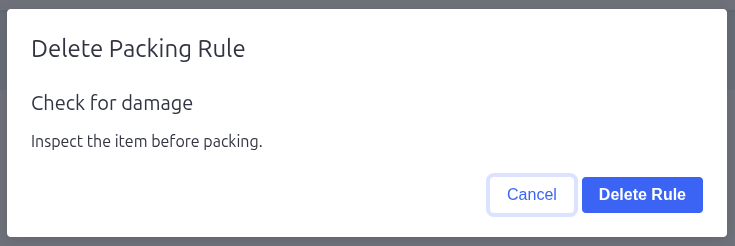
Delete to remove it (you’ll confirm first).

Pack Perfect
Pack Perfect is coming soon! Email support@athousandapps.com to be added to the list and we’ll let you know as soon as it’s released.