
The Convert Order Shipments page is where orders leave BigCommerce and
enter the warehouse workflow. It has three jobs, done in order:
- Prepare — pull your awaiting-fulfillment orders into Pack Perfect.
- Convert — turn prepared shipments into warehouse totes.
- Assign — group those totes into batches your pickers can work.
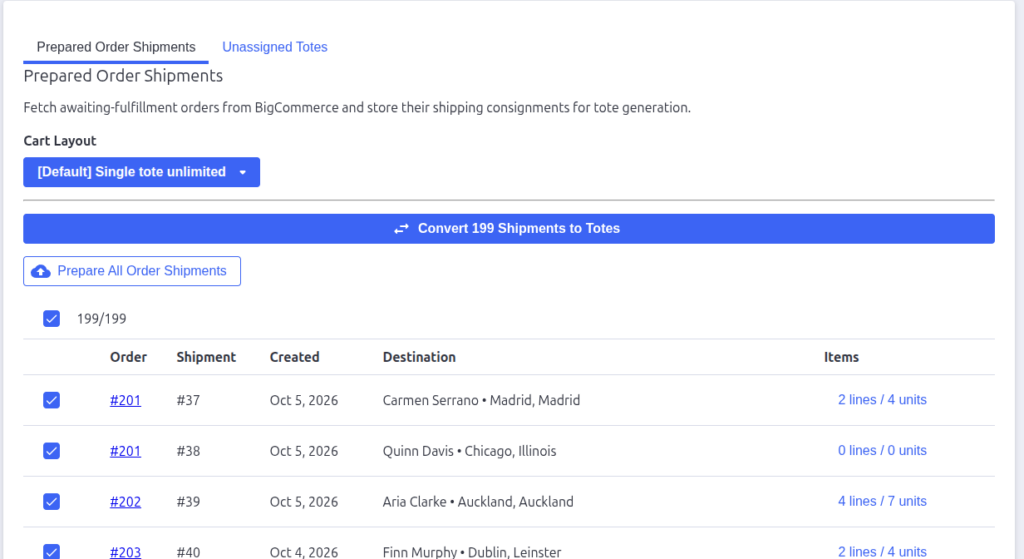
The page has two tabs: Prepared Order Shipments and Unassigned Totes.
Step 1 — Prepare order shipments
Click Prepare All Order Shipments.
Pack Perfect scans your BigCommerce orders with the status Awaiting
Fulfillment and reads each order’s shipping consignments — the groups of
items going to each shipping address. Every shipping consignment becomes one
prepared order shipment.
- Only shipping consignments are prepared. Pickup, digital-download, and
gift-certificate/email consignments are ignored. - Orders that were already prepared are skipped, so it’s safe to run Prepare
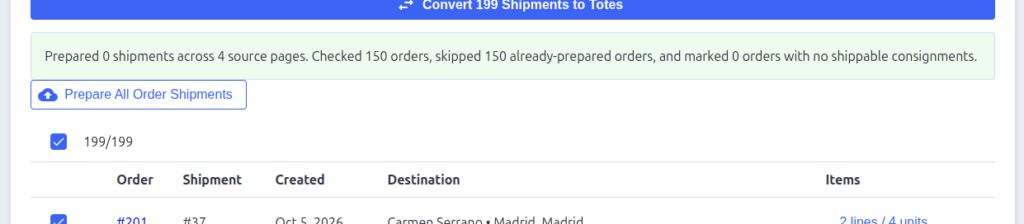
again whenever new orders come in. - While it runs you’ll see a progress message (“checked N orders across M
pages”), and when it finishes a green summary tells you how many shipments
were prepared and how many orders were skipped or had nothing shippable.
The prepared shipments table
After preparing, the table lists one row per shipment:
| Column | What it shows |
|---|---|
| (icon) | A warning icon if the shipment can’t be converted under the selected cart layout |
| Order | The BigCommerce order number |
| Shipment | The consignment/shipment number within the order |
| Status | The shipment’s current status |
| Destination | Who and where it’s shipping to |
| Items | Line count and total units — click it for a detail popup |
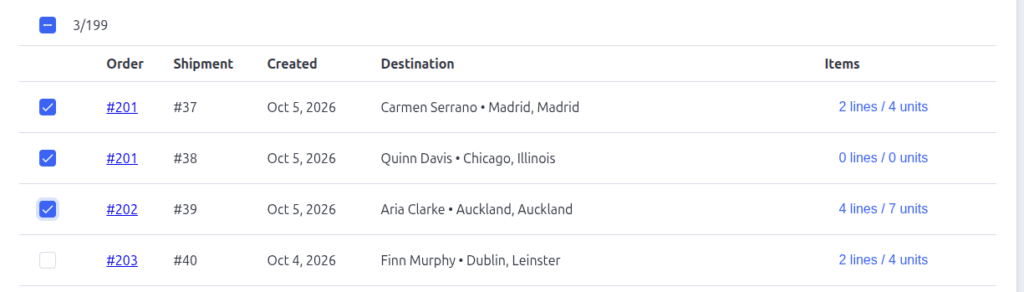
Every row is selected by default — conversion works on the checked rows.
Use the checkboxes to deselect any shipments you don’t want to convert yet.
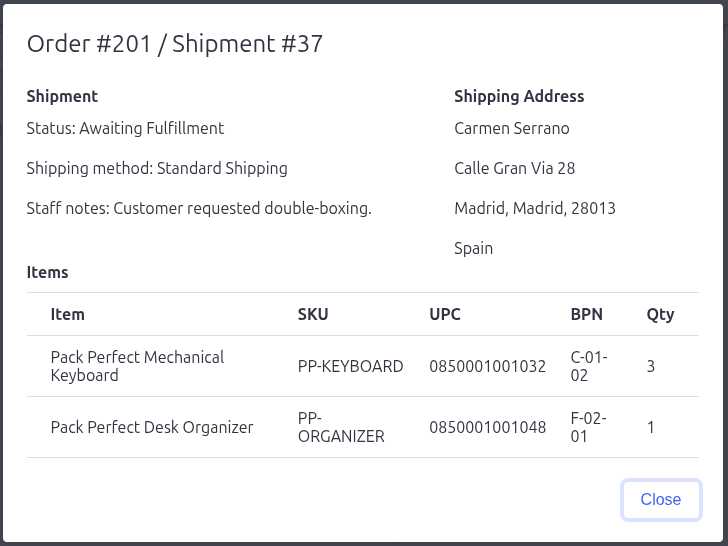
Clicking an Items cell opens a detail popup showing the shipment’s status,
shipping method, order comments, staff notes, the full shipping address, and
every line item (name, SKU, UPC, BPN, quantity).
Step 2 — Choose a cart layout
The Cart Layout dropdown tells Pack Perfect how many tote positions your
physical picking cart has, and whether the shipment’s items will fit.
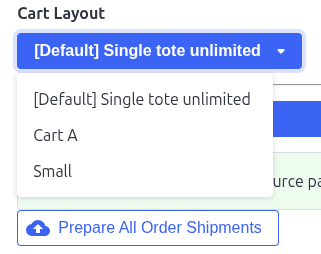
If a shipment can’t be converted under the chosen layout — for example it
needs more totes than the cart has positions, or it exceeds the layout’s item
limits — its row is dimmed, a warning icon appears, and it’s removed
from the selection automatically. Hover the warning icon to see the exact
reason.

Cart layouts are managed under App Settings → Cart Layouts.
Step 3 — Convert to totes
With shipments selected, click Convert N Shipments to Totes (the button
shows how many shipments are selected).
- A shipment’s items are split into totes based on the layout’s Max items
per tote — a shipment can span several totes. - A shipment’s totes are always kept together; a shipment can never be split
across batches later. - If the backend refuses any shipment, a “Shipments not converted” warning
lists the shipment IDs and the reasons.
When conversion finishes you’re taken straight to the Unassigned Totes
tab.
Step 4 — Assign totes to batches
The Unassigned Totes tab lists every tote waiting to be batched, filtered
to the selected cart layout. Each row shows the order, shipment, and item
counts — click Items for the tote’s contents.
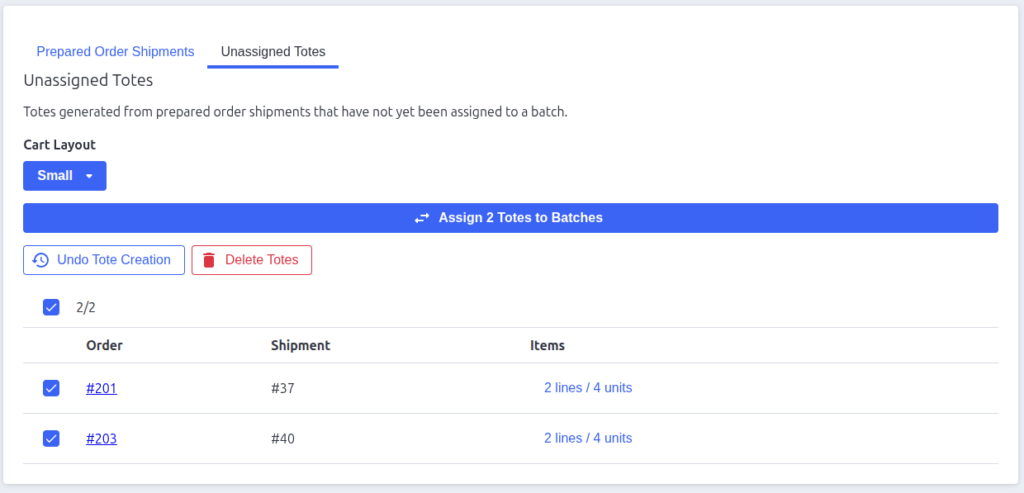
Click Assign N Totes to Batches to group the selected totes into picking
batches. Batches fill tote positions in order and keep each shipment’s totes
together. When it finishes, a success message links to the Active Batches
page, where your new batches appear with the status Prepared.
Undo and delete
Two corrective actions live on this tab. Both apply to every tote in the
affected shipments, not just the totes you selected — Pack Perfect never
picks partial shipments:
- Undo Tote Creation — deletes the totes and returns the shipments to the
Prepared Order Shipments tab so they can be converted again. - Delete Totes — permanently deletes the totes. The shipments stay marked
as converted and won’t be processed again.
Both open a confirmation dialog explaining exactly what will happen.
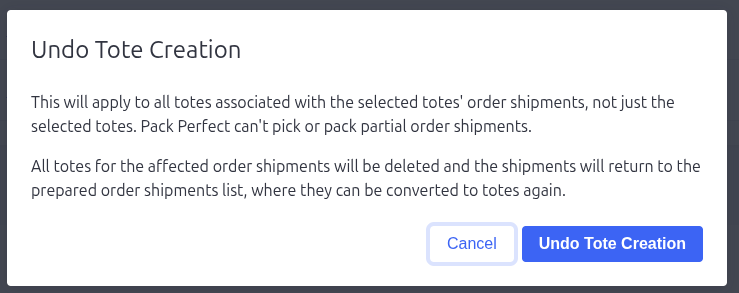
If a shipment’s totes are already assigned to a batch, the action skips it
and shows a warning naming the skipped shipment IDs — release or finish the
batch first, then retry.
What happens next
Once totes are assigned, the work moves to the warehouse: pickers claim
batches in the warehouse app, packers pack the shipments, and you can follow
progress on the Active Batches page.

Pack Perfect
Pack Perfect is coming soon! Email support@athousandapps.com to be added to the list and we’ll let you know as soon as it’s released.