
The Warehouse Login Codes page generates the codes warehouse staff use to
log into the warehouse app. A login code ties the session to this store and
this warehouse location — staff can’t access anything else with it.
What a warehouse code is
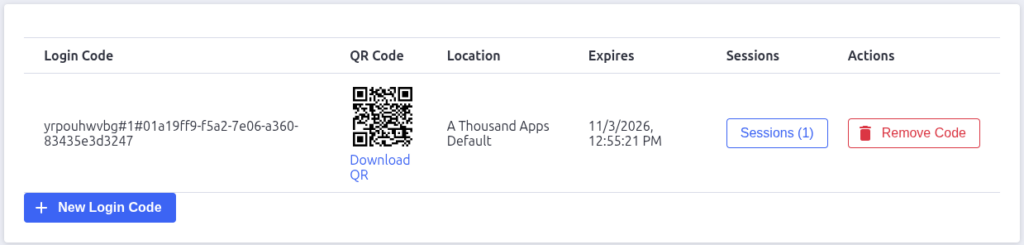
Each code looks like STORE#LOCATION#UUID — for exampleabc123#1#550e8400-e29b-41d4-a716-446655440000. On the warehouse app’s login
screen, the employee enters their login name plus this code (they can scan
the QR code instead of typing it).
Every code also has an expiry — once it expires, it can no longer be used
to start new sessions, so codes should be regenerated periodically.
The codes table
| Column | What it shows |
|---|---|
| Login Code | The full warehouse code — copy this to hand to staff, or print it for the noticeboard |
| QR Code | A QR image encoding the code, with a Download QR link for printing |
| Location | The store location the code is bound to |
| Expires | When the code stops working |
| Actions | Remove Code — deletes the code after a confirmation |
📷 Screenshot needed: one row of the table — capture the QR image and
the Download QR link.
Creating a code
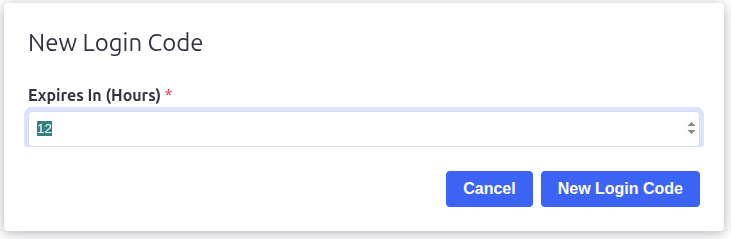
Click New Login Code, set Expires In (Hours) — the default is 12
hours — and confirm. The new code appears in the table straight away with its
QR image.
Generate a fresh code before each shift or each day, print the QR, and post
it where staff start work — they’ll scan or type it along with their own
login name.
Removing a code
Click Remove Code on a row and confirm the dialog. The code stops working
immediately — anyone trying to log in with it gets an “invalid warehouse
code” error. Removing a code doesn’t affect sessions that are already logged
in.

Pack Perfect
Pack Perfect is coming soon! Email support@athousandapps.com to be added to the list and we’ll let you know as soon as it’s released.