
The Cart Layouts page manages the picking carts your warehouse uses. A
cart layout is a grid of tote positions — rows × columns — that models a
physical picking cart. When shipments are converted to totes, the layout
controls how many totes fit on one cart and how items are divided between
them.
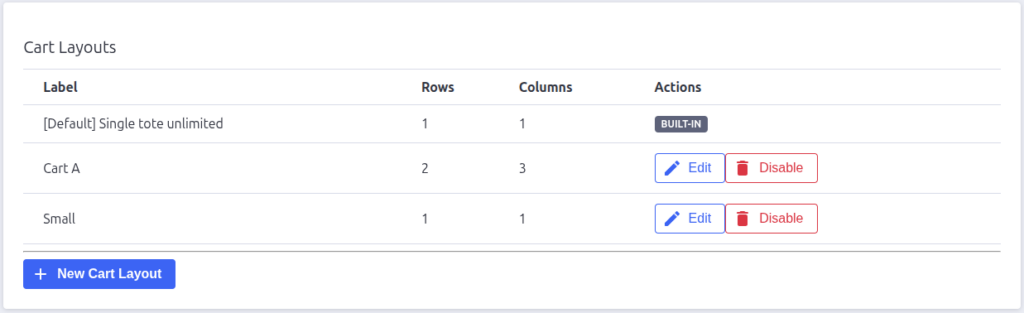
The layout list
| Column | What it shows |
|---|---|
| Label | The layout’s name — this is what you pick on the Convert Order Shipments page |
| Rows / Columns | The cart’s tote grid size |
| Actions | Edit opens the layout form; Disable removes it from selection |
The built-in “[Default] Single tote unlimited” layout is always available
— a single tote with unlimited capacity for shipments that can’t fit a
standard cart. It shows a “Built-in” badge and can’t be edited or disabled.

Creating a layout
Click New Cart Layout to open the layout form — see Creating and Editing
Cart Layouts for a walkthrough of the fields.
Disabling a layout
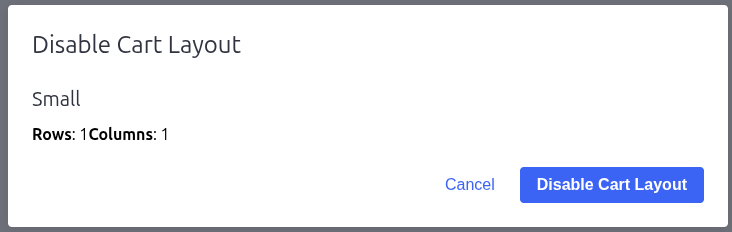
Click Disable on a layout and confirm the dialog (it shows the layout’s
grid size so you can double-check you’ve picked the right one). A disabled
layout no longer appears in the cart layout dropdowns when converting
shipments or picking a default in settings.
Disabling doesn’t affect batches or totes already created with that layout —
they keep their existing grid.

Pack Perfect
Pack Perfect is coming soon! Email support@athousandapps.com to be added to the list and we’ll let you know as soon as it’s released.