
The batch detail page is the complete record of a single batch — its status
history, who’s working it, every order shipment inside, the tote positions on
the cart, any items left behind for return, and the full item list.
Open it by clicking a batch name anywhere it appears (Active Batches,
Completed Batches, History, or an Action History entry).
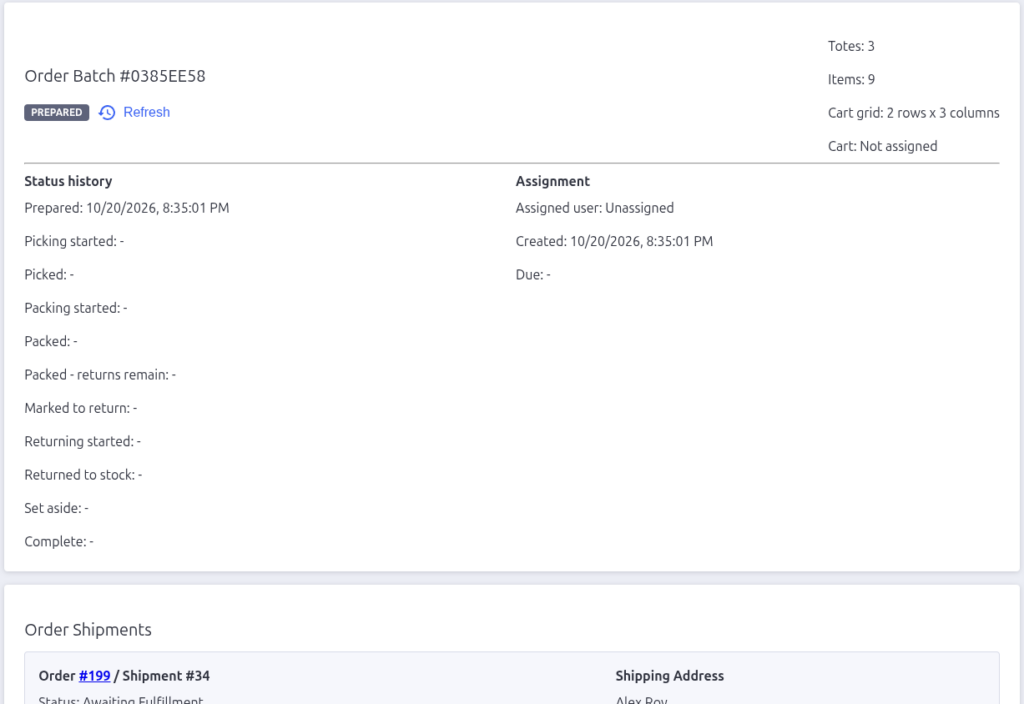
Header and summary
The header shows the batch name and a status badge (Prepared, Picking,
Picked, Packing, Packed – Returns, To Return, Returning, Complete, and the
parked variants). The Refresh button reloads the page.
Next to it, the summary shows:
- Totes — how many totes the batch contains
- Items — total line items
- Cart grid — the cart layout size (rows × columns)
- Cart — the cart ID the picker scanned when claiming the batch, or
“Not assigned”
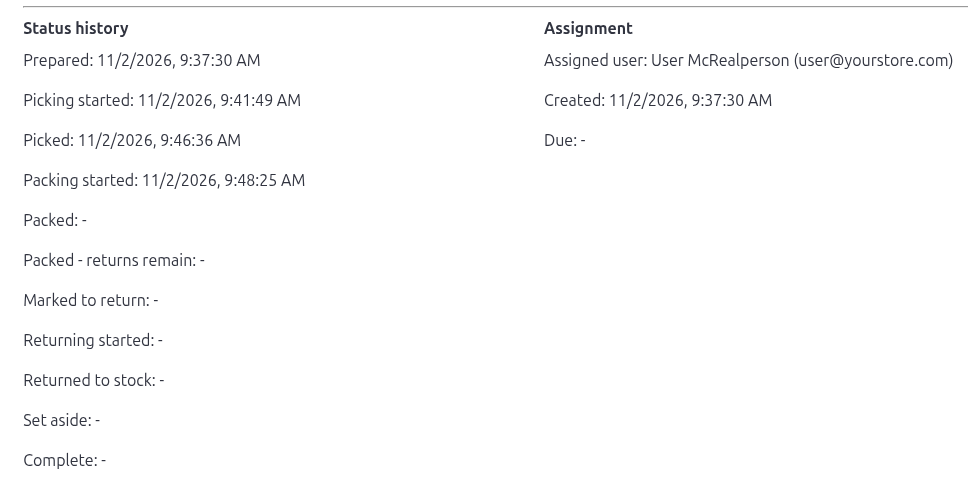
Status history and assignment
Two columns sit side by side:
- Status history — a timestamp for every milestone the batch has passed:
Prepared, Picking started, Picked, Packing started, Packed, Packed – returns
remain, Marked to return, Returning started, Returned to stock, Set aside,
and Complete. Park events appear inline too, e.g. “Picking parked:
picker@example.com at 3:42 PM”, as do per-shipment set-aside events. - Assignment — the warehouse user currently assigned (login name and
email, or “Unassigned”), the returner if a return is in progress, and the
Created/Due dates.
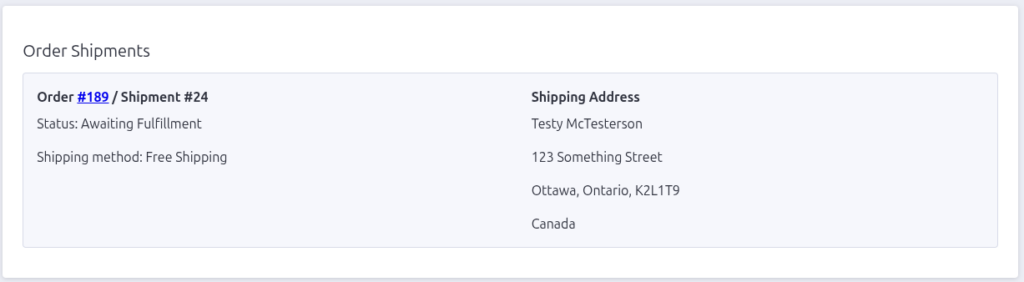
Order Shipments
Each order shipment in the batch gets a card showing:
- Status and shipping method
- Order comments and staff notes (when present)
- The full shipping address
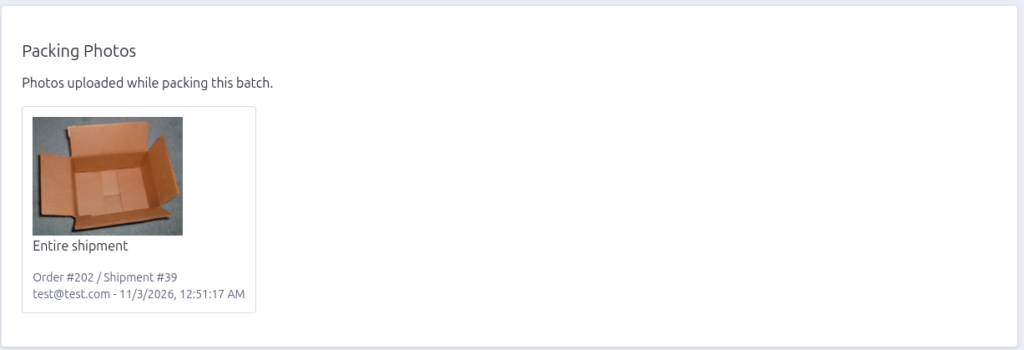
Packing Photos
If packers uploaded photos for a Take picture packing rule, they appear
here as thumbnails. Each photo is labelled with its subject (an item or the
entire shipment), the order/shipment it belongs to, who uploaded it, and
when. Click a thumbnail to open the full-size image.
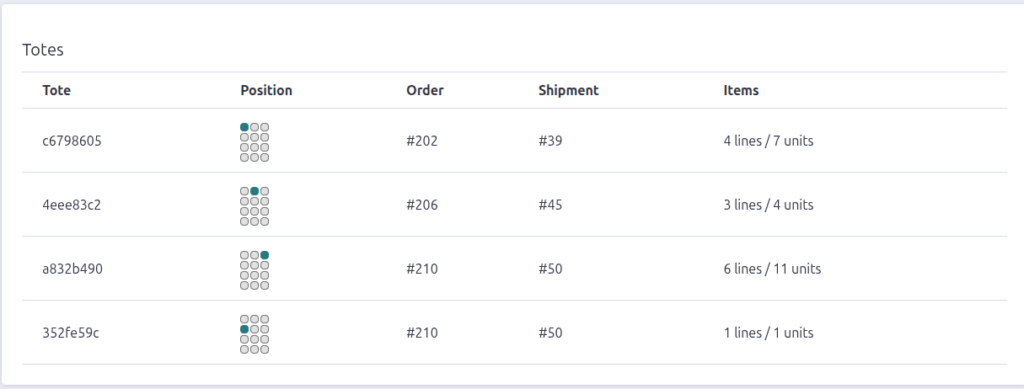
Totes
The Totes table maps the physical cart: each tote’s position (shown as a mini
grid), its order and shipment numbers, and how many lines/units it holds.
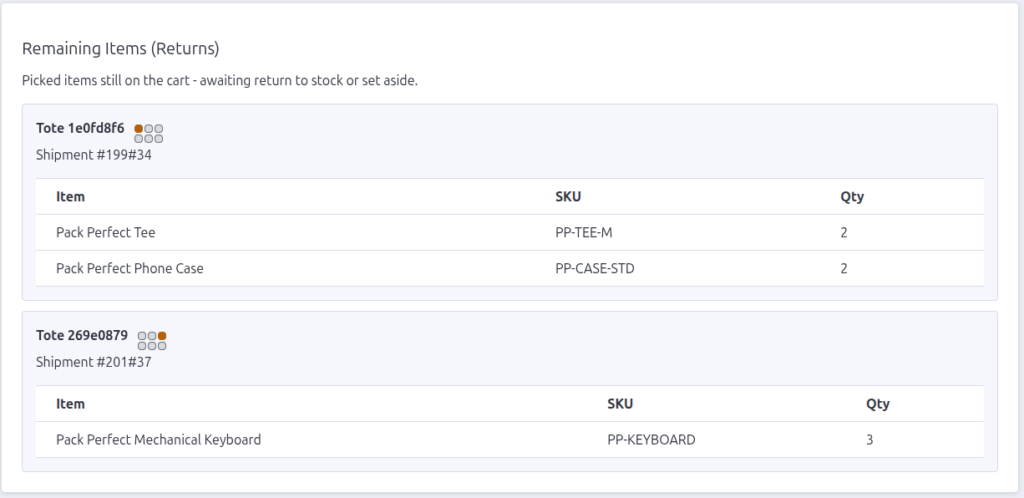
Remaining Items (Returns)
When packing finished with picked items left on the cart, they appear here —
grouped by tote with each tote’s position, shipment, and item list. This is
the same information the Completed Batches page uses to send the batch to
return or set aside.
Items
The full item table lists every item in the batch: name, SKU, UPC, BPN,
quantity, which tote it’s in, the tote’s grid position, and the order
shipment it belongs to.
Use Back to Active Batches at the bottom to return to the list.

Pack Perfect
Pack Perfect is coming soon! Email support@athousandapps.com to be added to the list and we’ll let you know as soon as it’s released.