
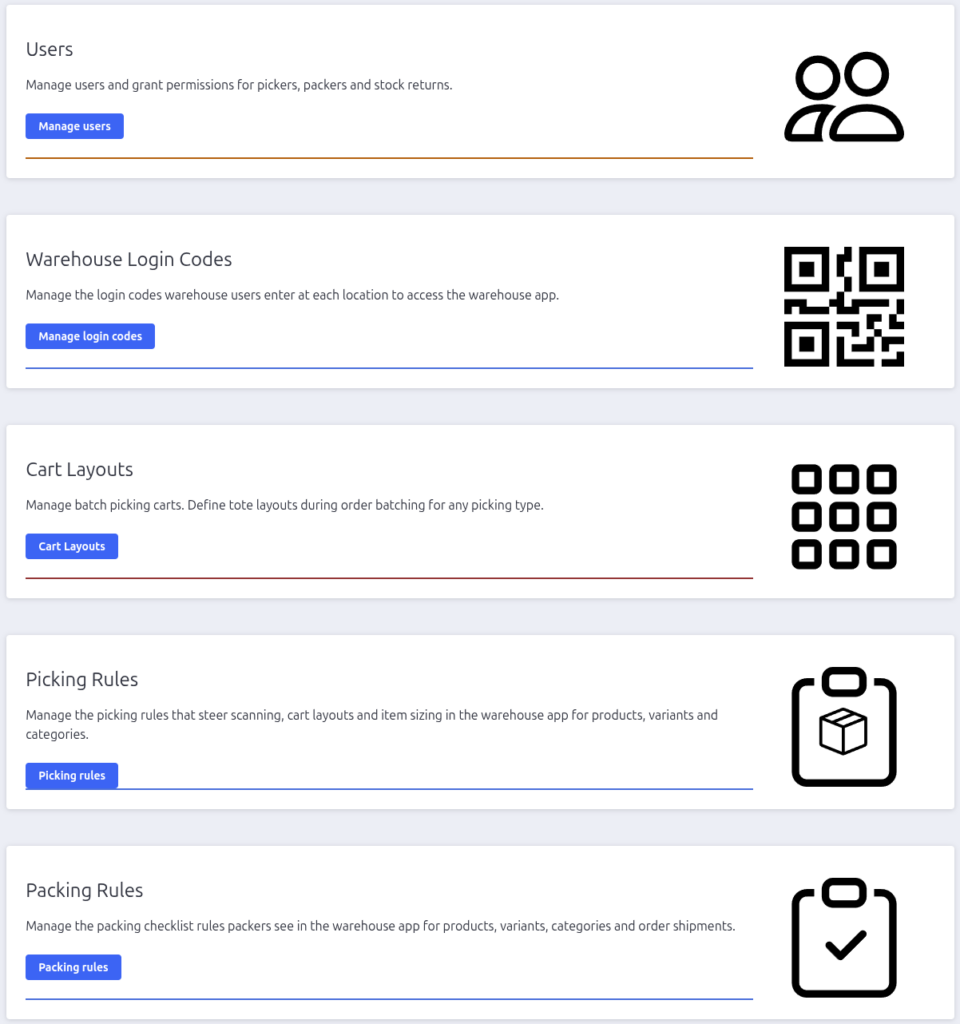
The App Settings page is the control centre for Pack Perfect. The four
cards at the top lead to the management pages, and the Settings panel at
the bottom holds the store-wide preferences.

Management pages
Each card links to a settings section:
| Card | What you manage there |
|---|---|
| Users | Warehouse employees and their pick/pack/returns permissions |
| Warehouse Login Codes | The codes (and QR codes) employees use to log into the warehouse app |
| Cart Layouts | The tote grids for your physical picking carts |
| Picking Rules | Rules for generating picking batches and picking products |
| Packing Rules | The checklist items packers see for products, categories and shipments |
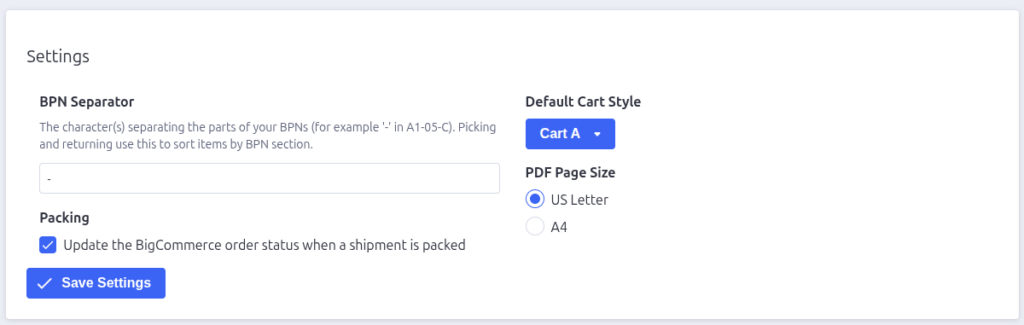
The Settings panel
BPN Separator
The character(s) that separate the parts of your BPNs (bin position
numbers / location codes) — for example - in A1-05-C. The warehouse app
uses this to sort items by BPN section during picking and returning, so it
walks your staff through the warehouse in order.
Packing
“Update the BigCommerce order status when a shipment is packed” — when
checked, packers get an order-status dropdown at the end of packing each
shipment, letting them move the order (e.g. to “Shipped” or “Awaiting
Pickup”) without leaving the warehouse app.
Default Cart Style
The cart layout preselected on the Convert Order Shipments page. Choose the
layout that matches the cart you use most often — you can still switch to a
different layout when converting.
PDF Page Size
The page size for generated batch PDFs — US Letter or A4.
Saving
Click Save Settings after making changes. The new settings take effect
immediately for the admin app, and for warehouse app sessions from then on.

Pack Perfect
Pack Perfect is coming soon! Email support@athousandapps.com to be added to the list and we’ll let you know as soon as it’s released.